ProjectilePath
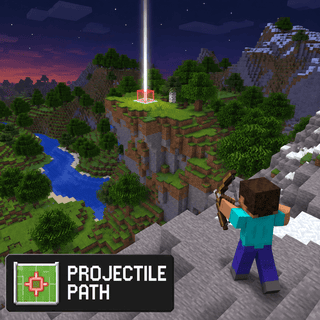
Shows where your shots and throws will hit while you aim, and where other players' ender pearls will land.
Included with Lunar Premium on mobile and every PC plan.


What does ProjectilePath do?
ProjectilePath is a visual module in Lunar Proxy for Minecraft Bedrock Edition. Shows where your shots and throws will hit while you aim, and where other players' ender pearls will land. Because Lunar runs as a proxy, ProjectilePath works on PC, Android, and iOS, and on Xbox, PlayStation, and Switch when the console connects through it. You turn it on from the in-game ClickGUI or with a chat command, and its settings are saved in your configs.
How do I turn on ProjectilePath?
- 01 Install Lunar on your phone or PC. Free on Google Play and the App Store; PC needs a subscription.
- 02 Connect to a server, Realm, or friend’s world from inside Lunar. Consoles then join through the Friends tab, the LAN list, or direct connect.
- 03 Open the in-game ClickGUI and switch on ProjectilePath, or type the ProjectilePath command in chat. Adjust its settings right in the panel.
What can you change in ProjectilePath?
ProjectilePath has 5 settings. Each one is adjustable in the ClickGUI, and the defaults below are what a fresh install uses.
| Setting | Type | Default | Range or options |
|---|---|---|---|
Show other players' ender pearls | toggle | On | On or off |
Custom values for | choice | Ender pearl | Ender pearl, Snowball, Egg, Bow, Crossbow, Splash potion, Lingering potion, XP bottle, Trident, Wind charge |
Launch speed | number | 1.5 | 0.1 to 5 in steps of 0.05 |
Gravity | number | 0.025 | 0 to 0.25 in steps of 0.005 |
Drag | number | 0 | 0 to 0.5 in steps of 0.005 |
Which devices does ProjectilePath work on?
Lunar is a proxy, so ProjectilePath behaves the same on every device that connects through it.
- PC
- Android
- iOS
- Xbox
- PlayStation
- Switch
Related Visual modules
All Visual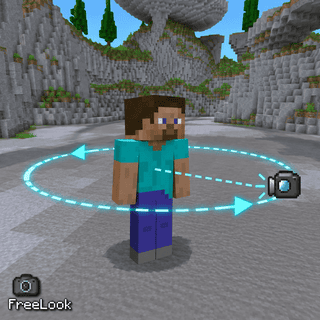
FreeLook
Look around freely without turning your character.
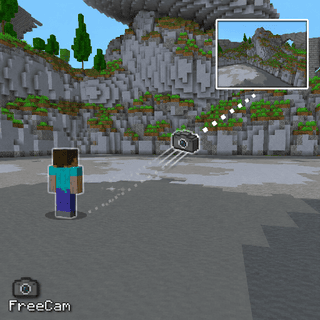
FreeCam
Detaches your camera so you can look around without moving.
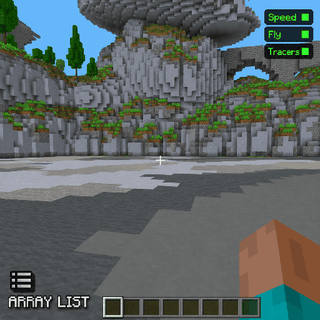
ArrayList
Shows your enabled modules on screen.
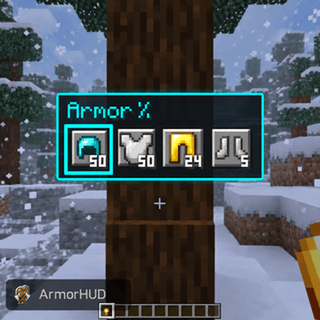
ArmorHUD
Shows your equipped armor and its durability on screen.
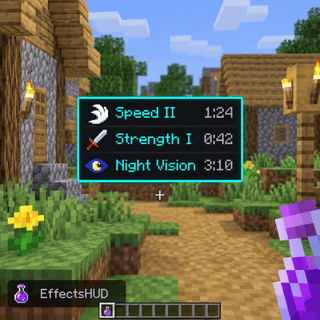
EffectsHUD
Shows your active effects, levels, and remaining time.
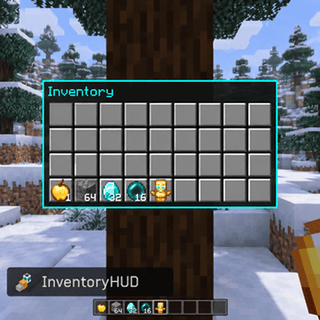
InventoryHUD
Shows your inventory and stack counts on screen.